
Help › Devices
Approving devices
Why devices wait for approval, how to approve many at once, and the expected-devices list that approves computers by serial number from a purchase order.
A computer that joins with a remote code or a deployment key lands as Pending approval. That's the safety net: if a code or key leaks, whoever uses it gets a computer that reports its status and nothing else, until someone in IT approves it.
What a pending device can and can't do
Still works
- Its status: CPU, memory, disks, online or offline
- Hardware details, so you can see what it is
- Security and app readings
Blocked until approved
- Terminal, screen and files
- Service control
- Automations, app installs, rollouts and security actions
- Opening it from My computers, even for its owner
Approve one or many
Pending devices appear at the top of the Nodes page and on the Company overview.
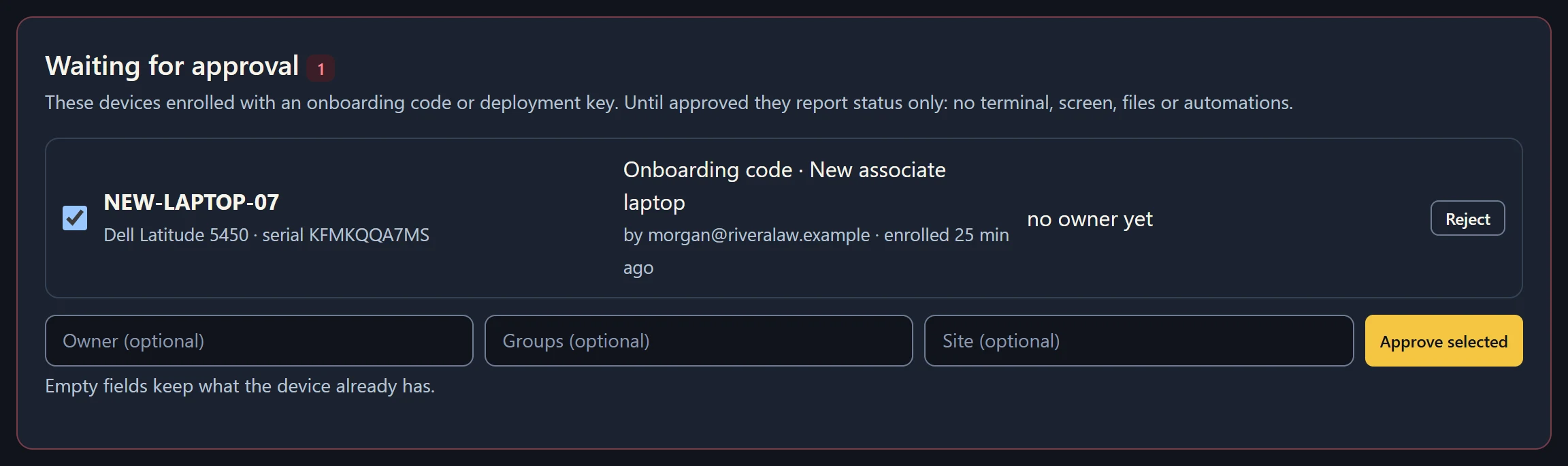
- Check each one is expected: what it is (maker, model and serial number arrive within a minute of enrolling), how it enrolled ("Onboarding code · New associate laptop · by morgan@…") and when.
- Tick the ones to approve (all are ticked to start with).
- Optionally fill in an owner, groups or a site. They're applied to every ticked device. Leave a field empty to keep what the device already has from its code or key.
- Press Approve selected.
To refuse one, press Reject twice. The device is removed and can't reconnect; the agent stays on the computer until someone uninstalls it.
You can also approve a single device by changing its Status to Active on its Device tab. Every approval and rejection is in the audit log.
The expected-devices list
When you buy computers, the supplier gives you their serial numbers. Paste them into bananana.dev before the computers arrive, and each one approves itself when it enrolls, with the right owner, groups and site, so nobody has to watch for it.
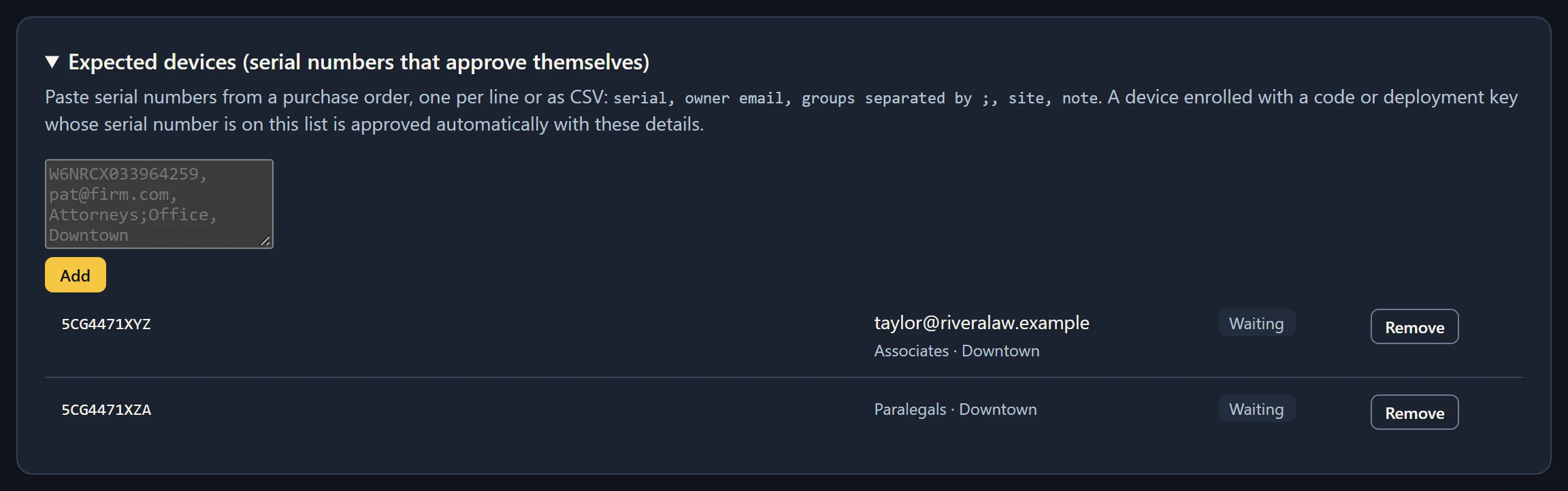
- Open Expected devices at the bottom of the Nodes page.
- Paste one serial per line, or CSV rows:
serial, owner email, groups separated by ;, site, note. A header row is skipped. Example:5CG4471XYZ, [email protected], Associates;Downtown, Downtown, new laptop - Press Add.
When a computer enrolls with a code or deployment key and its serial number (read from its firmware within a minute) is on the list, it's approved with the details from the list, marked Matched, and the approval is written to the audit log as "approved automatically". Each serial approves one computer only, so a cloned image can't reuse it.