Help › People and access
Users, roles and permissions
Invite people, give each a role that fits their job, limit them to some devices, make your own roles, and suspend or remove someone in seconds.
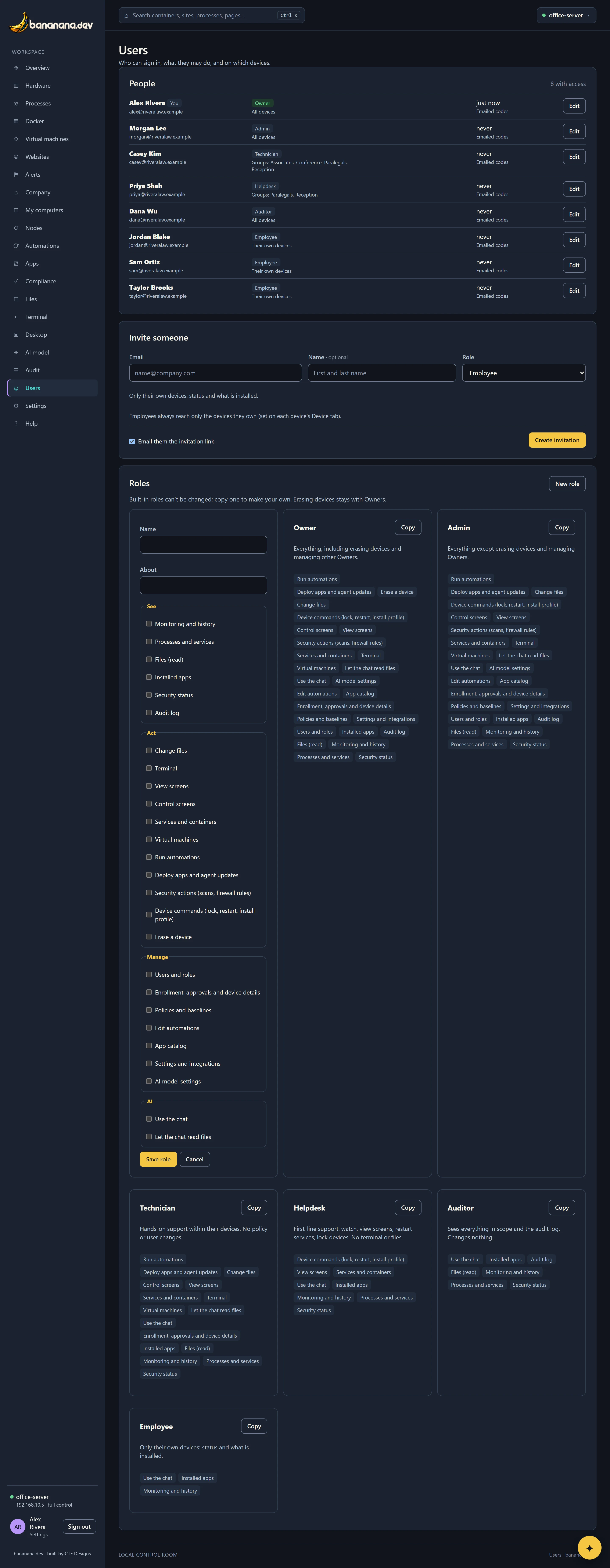
Everyone who uses the dashboard has an account with a role (what they may do) and a scope (on which devices). Open Users (needs "Users and roles").
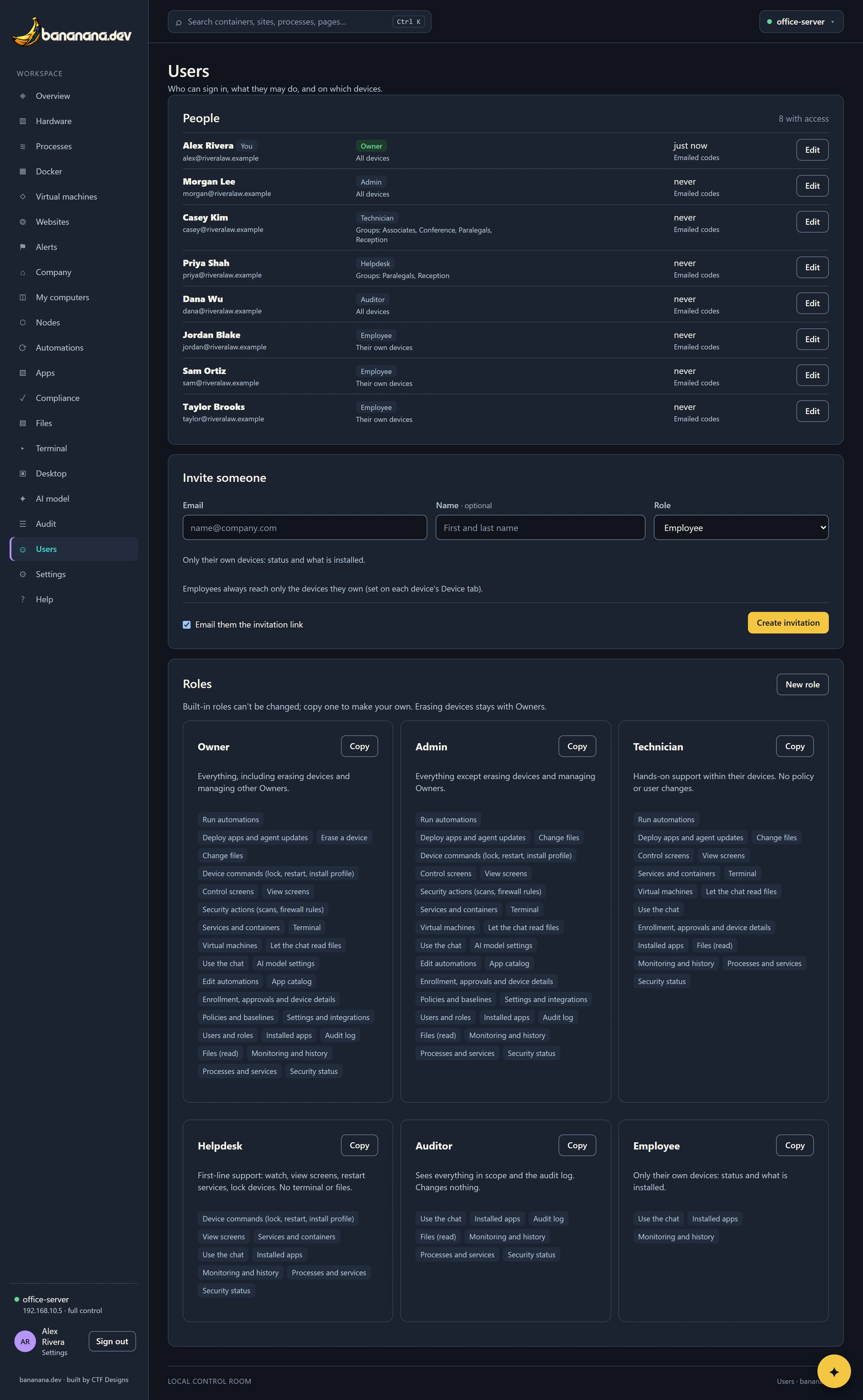
The built-in roles
| Role | For | May |
|---|---|---|
| Owner | The person responsible for bananana.dev at your company. | Everything, including managing other Owners and (in future) erasing devices. There's always at least one Owner: the last one can't be removed, suspended or demoted. |
| Admin | The IT manager. | Everything except erasing devices and managing Owners. |
| Technician | Hands-on support, in-house or an outside IT company. | See everything except the audit log; terminal, screen, files, services, virtual machines, run automations, deploy apps and agent updates, onboard and approve devices, use the AI including files. No policy, catalog or user changes. |
| Helpdesk | First-line support. | See status, processes, apps and security; view screens (not control); restart services; use the AI. No terminal or files. |
| Auditor | Compliance officers, outside auditors. | See everything in their scope, including the audit log. Change nothing. They see the Automations, Users and AI model pages read only: View instead of Edit, no Run now, no invitations, no webhook addresses or AI sign-in links. Buttons they can't use are left off the device tabs. |
| Employee | Everyone else. | Their own computers only: status, apps, and (because they own them) screen and files. Use the AI about their own computers. |
Every permission
| Group | Permission | Allows |
|---|---|---|
| See | Monitoring and history | Overview, Company, readings, charts, alerts |
| See | Processes and services | Process and service lists, system logs |
| See | Files (read) | Browsing and downloading files |
| See | Installed apps | Apps page and each device's Apps tab |
| See | Security status | Security tabs, Compliance |
| See | Audit log | The Audit page and export |
| See | Automations, users and AI settings (read only) | The Automations, Users and AI model pages without their controls. Auditors have it; Technicians don't. |
| Act | Change files | Upload, rename, move, delete |
| Act | Terminal | Command lines on devices |
| Act | View screens / Control screens | Watching / controlling screens |
| Act | Services and containers | Start, stop, restart |
| Act | Virtual machines | Start and stop virtual machines on the brain |
| Act | Run automations | Run now, dry run |
| Act | Deploy apps and agent updates | Install, update and remove apps on devices; rollouts; agent updates |
| Act | Security actions | Scans, definition updates, Defender settings, firewall rules |
| Manage | Users and roles | This page |
| Manage | Enrollment, approvals and device details | Onboarding, approvals, expected devices, the Device tab |
| Manage | Policies and baselines | Compliance baselines, Defender exclusions |
| Manage | Edit automations | Create and change automations and scripts |
| Manage | App catalog | Apps and rings |
| Manage | Settings and integrations | Brain-wide settings |
| Manage | AI model settings | The AI model page |
| AI | Use the chat | The assistant |
| AI | Let the chat read files | The assistant may read files on devices |
Scope: which devices
- All devices, or
- Only these groups and sites: just devices in the groups or at the sites you list. Tick Also … itself (the server) to include the brain's own pages too.
- Employees' scope is always their own computers.
Scope applies everywhere: lists, pages, the Company overview, automations they can run, and what the AI can look up for them. Example: an outside IT company as Technicians scoped to Associates, Paralegals, Reception never sees the partners' computers.
Invite someone
- Under Invite someone, enter their email and (optionally) their name, and choose a role. What the role can do appears under the picker; for roles other than Employee, choose which devices they reach.
- Leave Email them the invitation link ticked to send it, or untick it to get a link you send yourself, then press Create invitation. Inviting asks for your password again if you haven't confirmed it in the last 15 minutes; what you filled in is kept.
- They open the link within 7 days, choose a password (or sign in with Google), and they're in.
Pending invitations are listed with a Copy link button and a way to cancel them.
Change, suspend or remove someone
Press Edit on a person to change their name, department, role, status or scope.
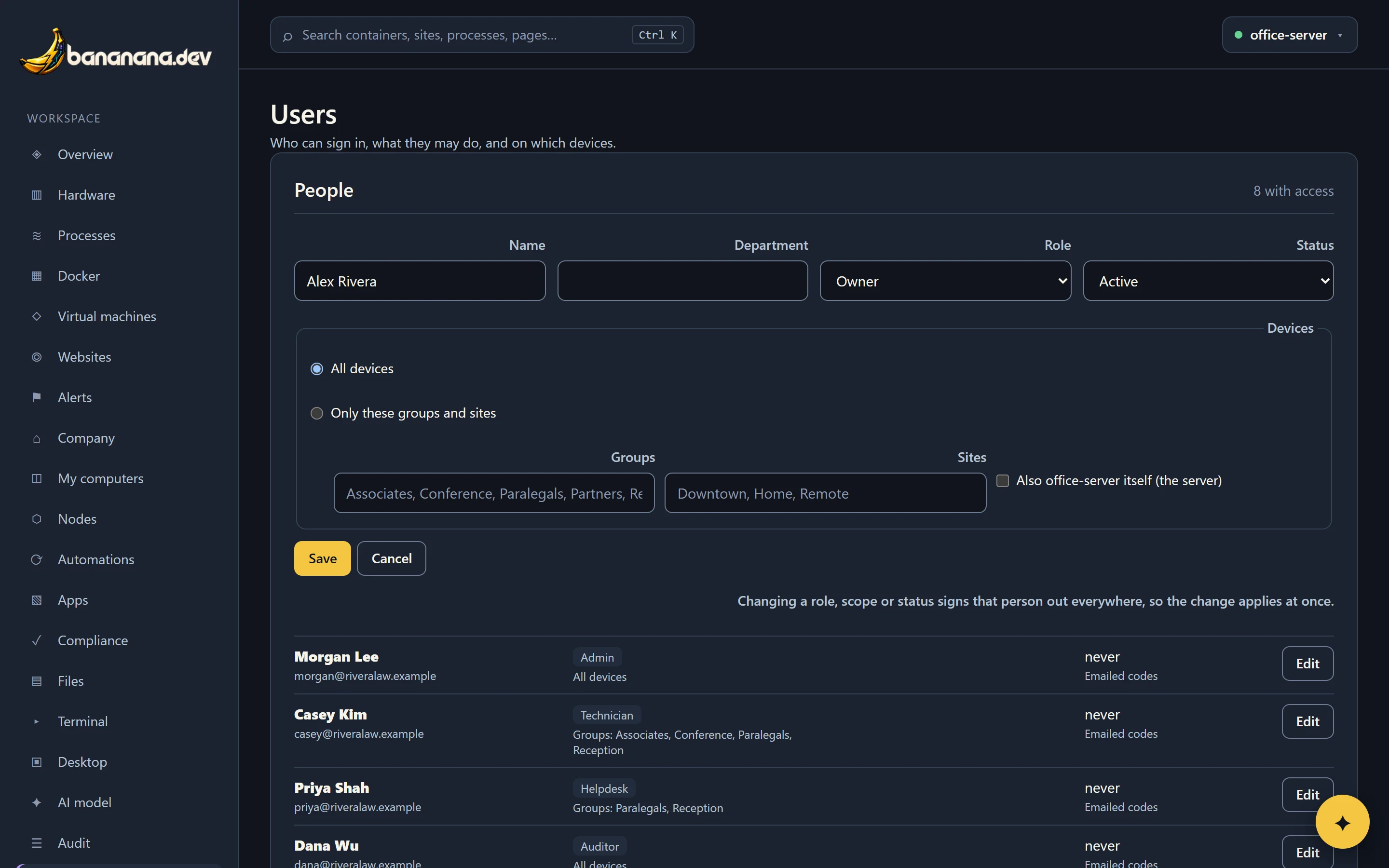
- Suspend (set status to Suspended) signs them out everywhere at once and blocks sign-in until you set them back to Active. Use it the moment someone leaves.
- Remove deletes the account. Their entries in the audit log stay.
Changing users asks you to confirm it's you if you haven't in the last 15 minutes.
Make your own role
Press New role, or Copy on a built-in role to start from it. Name it, describe it, tick its permissions, and save. Example: a "Billing" role that only sees installed apps and seats.