
Help › Devices
Devices and the device page
The Nodes page, and everything on a device's own page: overview, management details, security, apps, processes, services and files.
The Nodes page
Nodes in the menu lists every device as a card: name, system, owner and groups, online or offline, and live CPU, memory, disk and temperature with a small CPU graph. Cards marked Needs approval or Security need a look.
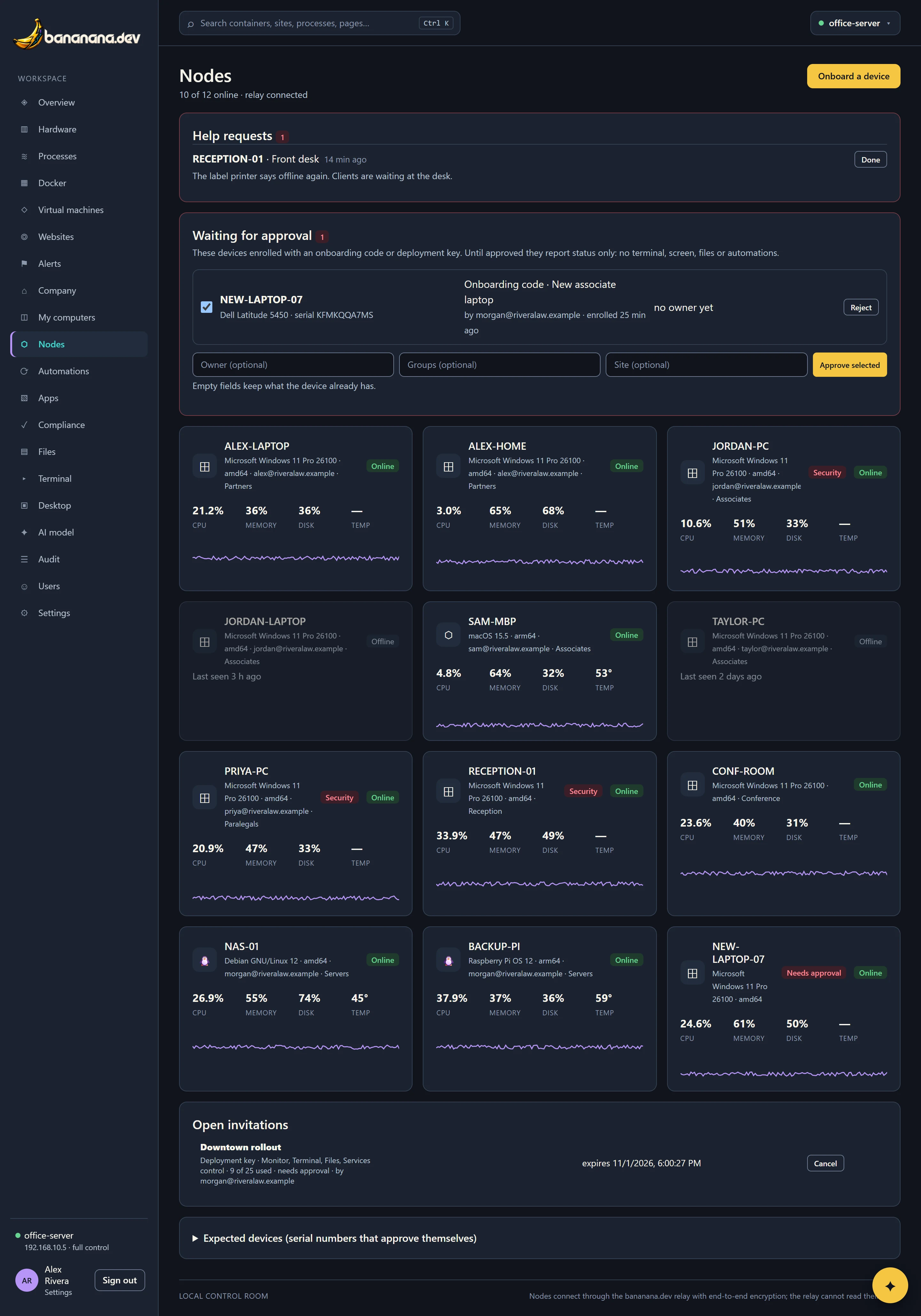
Above the cards you may see Help requests (from the bananana.dev icon on people's computers) and Waiting for approval. Below them: Open invitations (codes, install commands and deployment keys that haven't been used up yet, each with a Cancel button) and Expected devices. Those are covered in Adding computers and Approving devices.

A device's page
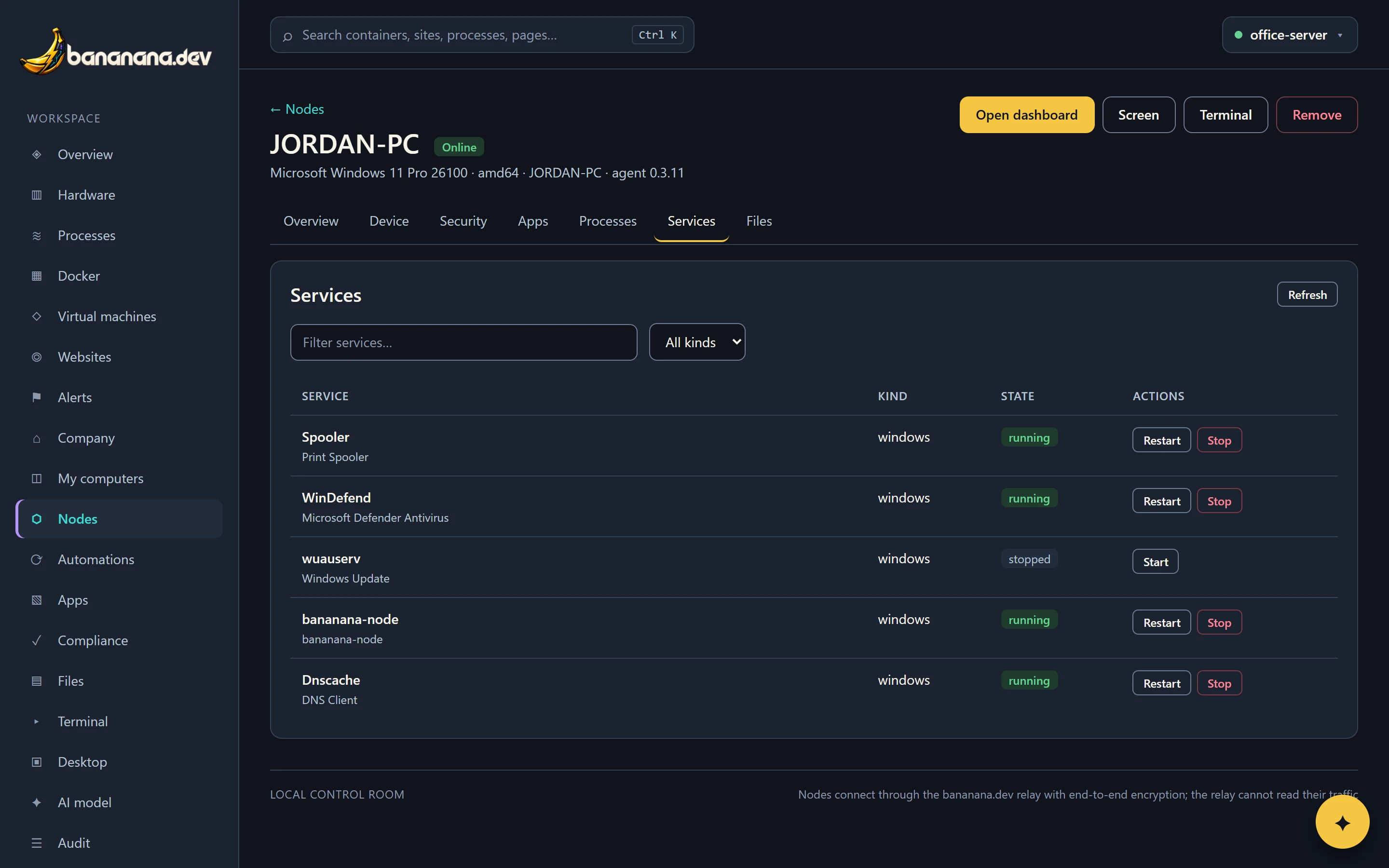
Click a card to open the device. The header shows its name, whether it's online, its system, processor type, hostname and agent version, and these buttons:
| Button | Does |
|---|---|
| Open dashboard | Switches the whole dashboard to this device, so Overview, Processes, Services, Files, Terminal and Screen show it. |
| Screen, Terminal | Open its screen or command line, if it allows them and your role does too. |
| Update agent to … | Shown on an online device running an older agent: the device downloads it, checks it and restarts in a few seconds. |
| Remove | Click twice. The brain forgets the device and won't accept it again. Uninstall the agent on the computer too. |
Below are tabs. Which ones you see depends on what the device allows and what your role may see.
Overview
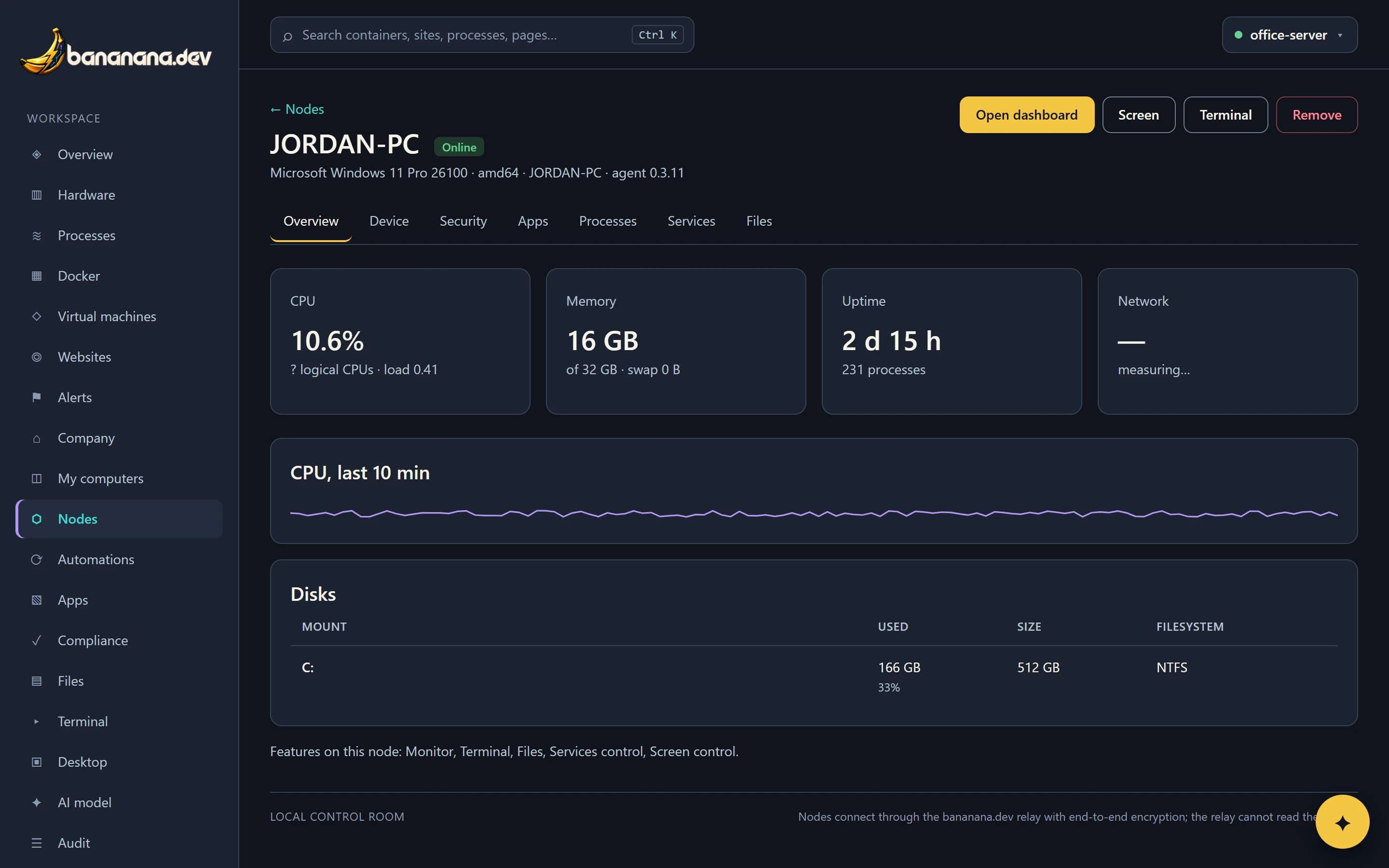
Live CPU, memory, uptime and network, CPU over the last ten minutes, every disk with its file system and how full it is, and which features the device allows.
Device
The management details and the hardware.
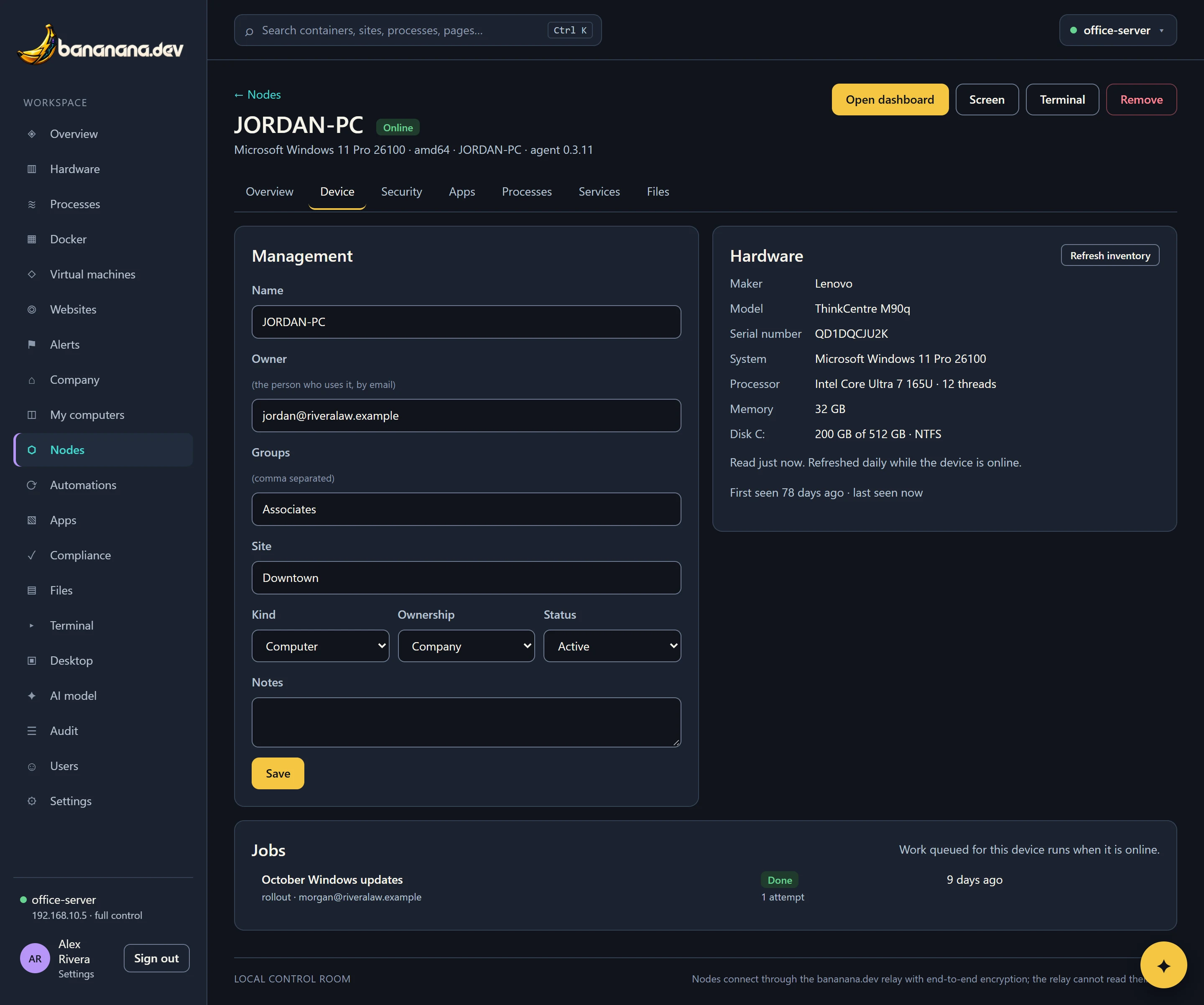
| Field | What it's for |
|---|---|
| Name | How it's shown everywhere in bananana.dev. |
| Owner | The person who uses it, by email. They see it under My computers and can always open its screen and files. Rollouts and app assignments by role follow the owner's role. |
| Groups | Any number of labels, comma separated: Partners, Downtown, Laptops. Used for app assignments, rollout rings, compliance baselines, automations and the scope of people's roles. |
| Site | Where it is: Office, Home, Remote, a branch. Roles can be limited to sites. |
| Kind, Ownership | Computer, laptop, server, virtual machine, phone, tablet; company or personal. |
| Status | Active (normal), Pending approval (status only until approved), or Retired (kept for the record, left out of everything). |
| Notes | Anything useful for whoever looks after it next. |
The Hardware panel shows maker, model, serial number, operating system, processor, memory, disks and network cards (with their hardware addresses, used for Wake-on-LAN). It's read when the device joins and then daily; Refresh inventory reads it again now. Jobs lists work queued for this device and what happened.
Hardware
A full readout, like Windows' Device Manager, read with the daily inventory (press Read again for now):
- Summary: processor, memory, storage, graphics, battery health, and how many devices have a problem.
- Devices with a problem, at the top when there are any, with the error explained in words ("No driver installed", "Disabled", "Stopped: it reported a problem") and its Device Manager code.
- System: maker, model, family, type (laptop, desktop…), serial number, motherboard, firmware version and date, and whether it boots in UEFI mode.
- Operating system and security: version and build, when it was installed and last started, TPM version and Secure Boot.
- Processor (cores, threads, speed, cache), memory (every module: slot, size, type, speed, maker, part number, and how many slots are free), drives (model, serial, SSD or HDD, bus, health, wear, temperature, hours powered on) and volumes.
- Graphics with driver versions, displays (model, size, serial), network adapters (status, speed, hardware address, driver), battery (health as a percentage of when it was new, charge cycles) and printers.
- All devices: everything in Device Manager by category, with each driver's version, date and provider. Type to find one.
Windows reports the most; Macs and Linux computers report what system_profiler and Linux's own tools know. Hardware CSV at the top of the Nodes page downloads every device's hardware in one spreadsheet. You can also ask the assistant, for example "which laptops have a battery below 80%?" or "does any PC have a driver problem?".
Security
Antivirus, firewall and detections, with actions such as scans and firewall rules: Windows security: Defender and firewall.
Apps
The company's catalog apps for this device with their state, and everything installed on it, searchable: The app catalog.
Processes
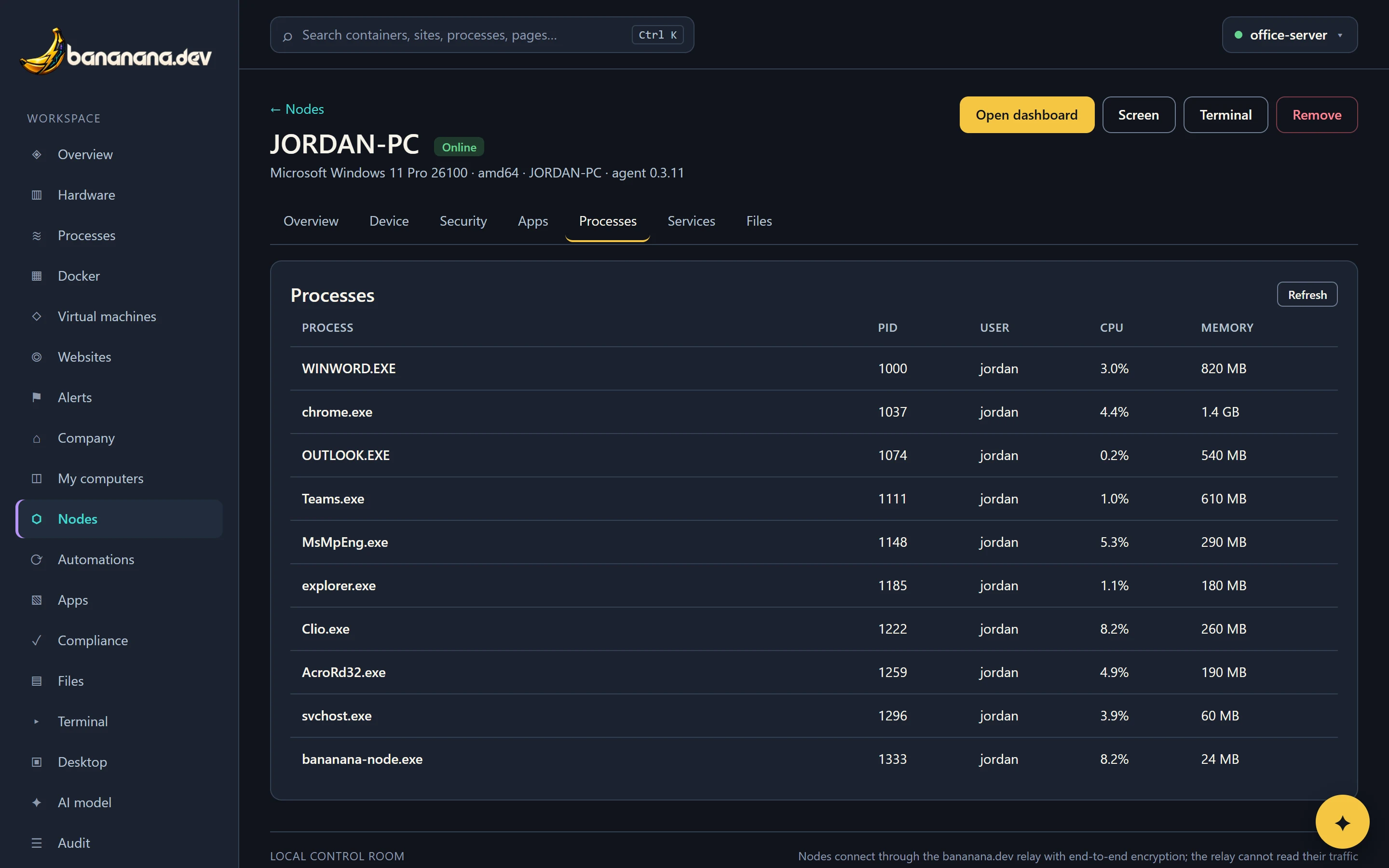
What's running, busiest first, with the user and memory.
Services
Windows services, systemd units or launchd jobs, plus Docker containers on that device, with Start, Stop and Restart. Filter by name or kind.
Files
Browse, download, upload, create folders, rename, move and delete: Screen, terminal and files.
Offline devices
An offline device keeps everything you knew about it (the Device tab, the last security and app readings, compliance) and shows when it was last seen. Work you queue for it (installs, scripts, security actions) waits and runs when it reconnects. You can wake it from My computers if it supports Wake-on-LAN.