
Help › Managing the fleet
Automations
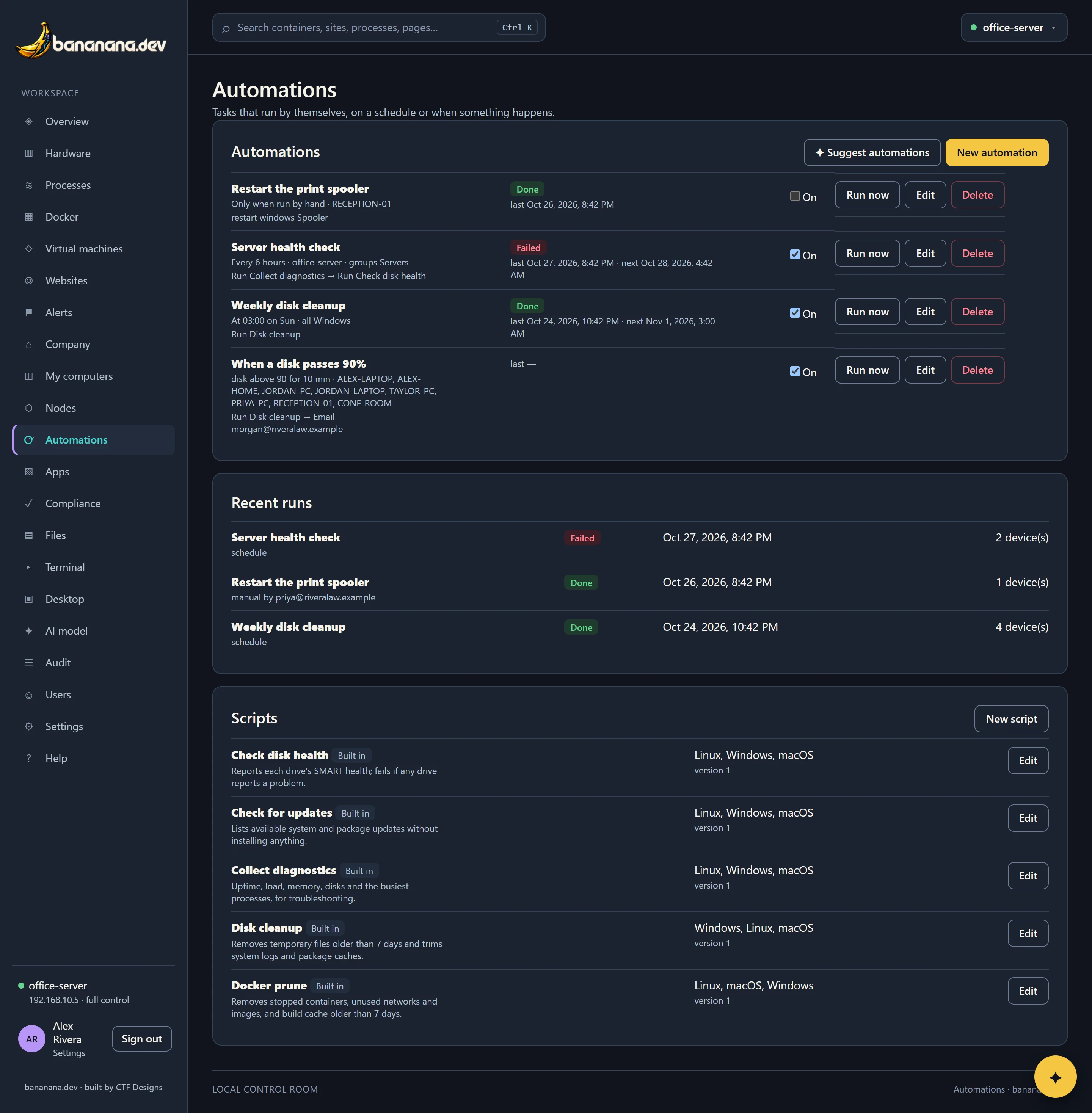
Tasks that run by themselves: on a schedule, when an alert starts, when a device goes offline or a reading stays high, or when another system calls a link. With a script library, dry runs and full output for every run.
An automation is when something happens, on which devices, do these steps. For example: every Saturday at 03:00, on every Windows PC, run Disk cleanup, and email me if anything fails.
Make an automation
- On Automations, press New automation (needs "Edit automations").
- Give it a name people will understand.
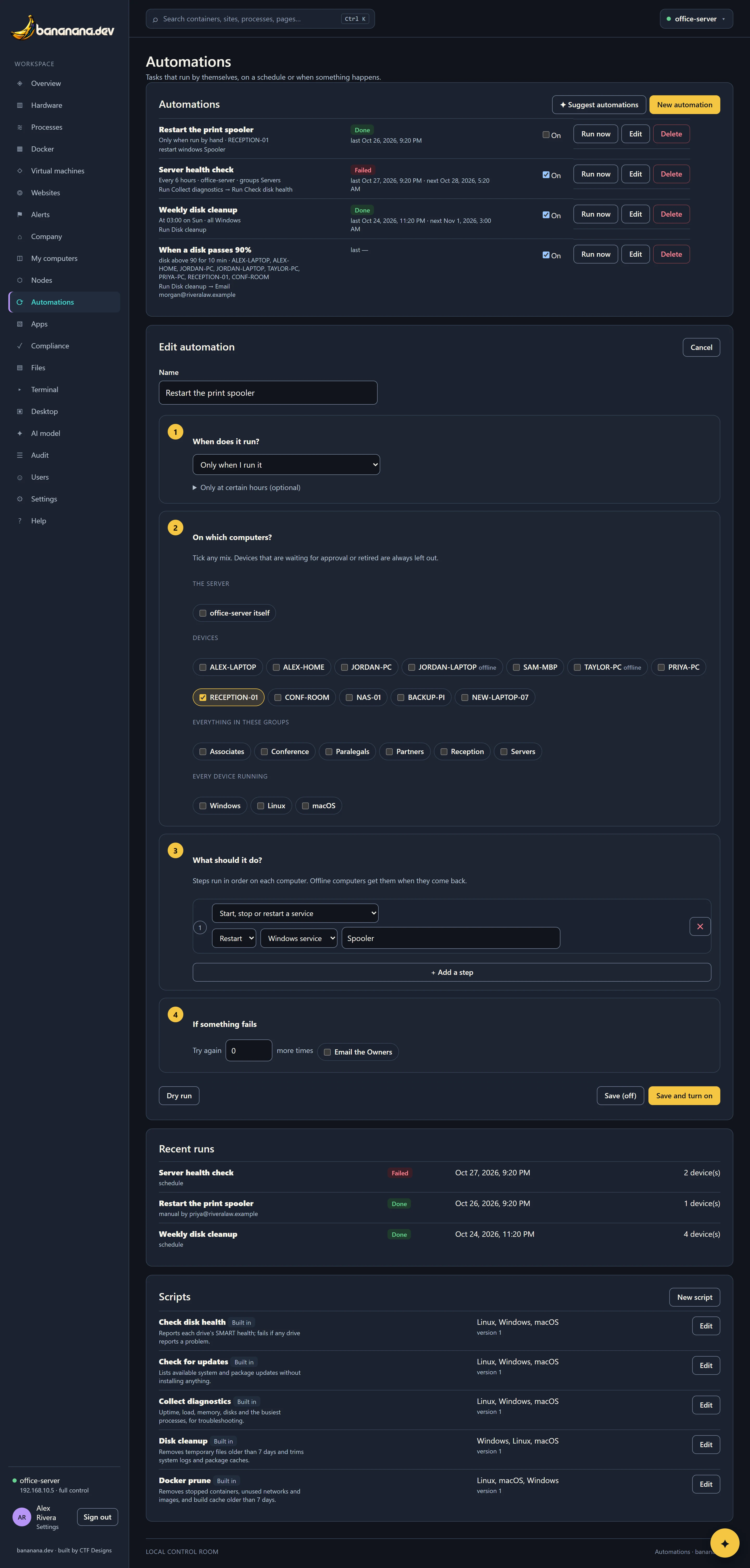
- Fill in the four numbered sections: 1 When does it run?, 2 On which computers?, 3 What should it do? and 4 If something fails (all explained below). Choices are pills you tick; the optional time window sits under Only at certain hours.
- Press Dry run to see exactly which devices it would touch and what it would do, without doing anything.
- Press Save (off) (it starts turned off, so you can try it first) or Save and turn on. The switch in the list turns it on or off at any time, and Run now runs it once whenever you like.
The buttons stay at the bottom of the screen while you scroll. If something is missing (say, no computers ticked), the reason appears right next to them and everything you typed stays as it was.
What starts it
| Trigger | Starts when | Example |
|---|---|---|
| Schedule | Every N minutes, or at a time of day on chosen weekdays. | Every 6 hours; Saturdays at 03:00. |
| An alert starts | Any alert, or one whose text contains a word you give. | When an alert mentioning "disk" starts. |
| A device goes offline / comes back | One of the target devices disconnects, or reconnects. | When NAS-01 goes offline, email the IT manager. |
| A reading stays high | CPU, memory, disk or temperature stays above a level for some minutes. | Disk over 90% for 10 minutes: run cleanup. |
| Its webhook is called | Another system calls the automation's private link. The secret in the link is the password, so keep it private. | Your monitoring service calls it when a site is down. |
| Only when run by hand | You press Run now. | A "restart the print spooler" button for the helpdesk. |
Add a time window (for example 22:00 to 06:00) and a scheduled or triggered run outside it waits until the window opens.
Which devices
Any mix of: the brain itself, specific devices, everything in some groups, and everything running an operating system (Windows, macOS, Linux). Devices that are retired or waiting for approval are always left out.
Steps
| Step | Does | Device must allow |
|---|---|---|
| Run a script | A script from the library, in the right version for each device's system, with a time limit. | Terminal |
| Service or container | Start, stop or restart a Windows service, systemd unit, launchd job or Docker container. | Services control |
| Send an email | To the Owners or to addresses you list, always or only if something failed. Includes each device's result. | - |
| Call a webhook | Posts the result to an https address (a chat channel, a ticketing system). | - |
Steps run in order on each device. Offline devices get their steps when they come back, through the job queue.
If something fails
Choose how many times to retry, and whether to email the Owners. Failure emails say what the error means and what to do about it, for example "installer error 1603: often the app is running or a restart is pending; restart the PC and try again".
The script library
Scripts can have a version for each system (PowerShell or cmd for Windows, bash, sh or zsh for Mac and Linux). Five come built in:
| Script | Does |
|---|---|
| Disk cleanup | Removes temporary files older than 7 days, trims system logs and package caches, and reports what it freed. |
| Docker prune | Removes stopped containers, unused images and networks, and build cache older than 7 days. |
| Check disk health | Reads every drive's SMART health; fails if any drive reports a problem. |
| Check for updates | Lists available system and package updates without installing anything. |
| Collect diagnostics | Uptime, memory, disks, the busiest processes and failed services, for troubleshooting. |
Press New script to add your own. Every save keeps the previous version, so you can see what changed and who changed it.
Runs and their output
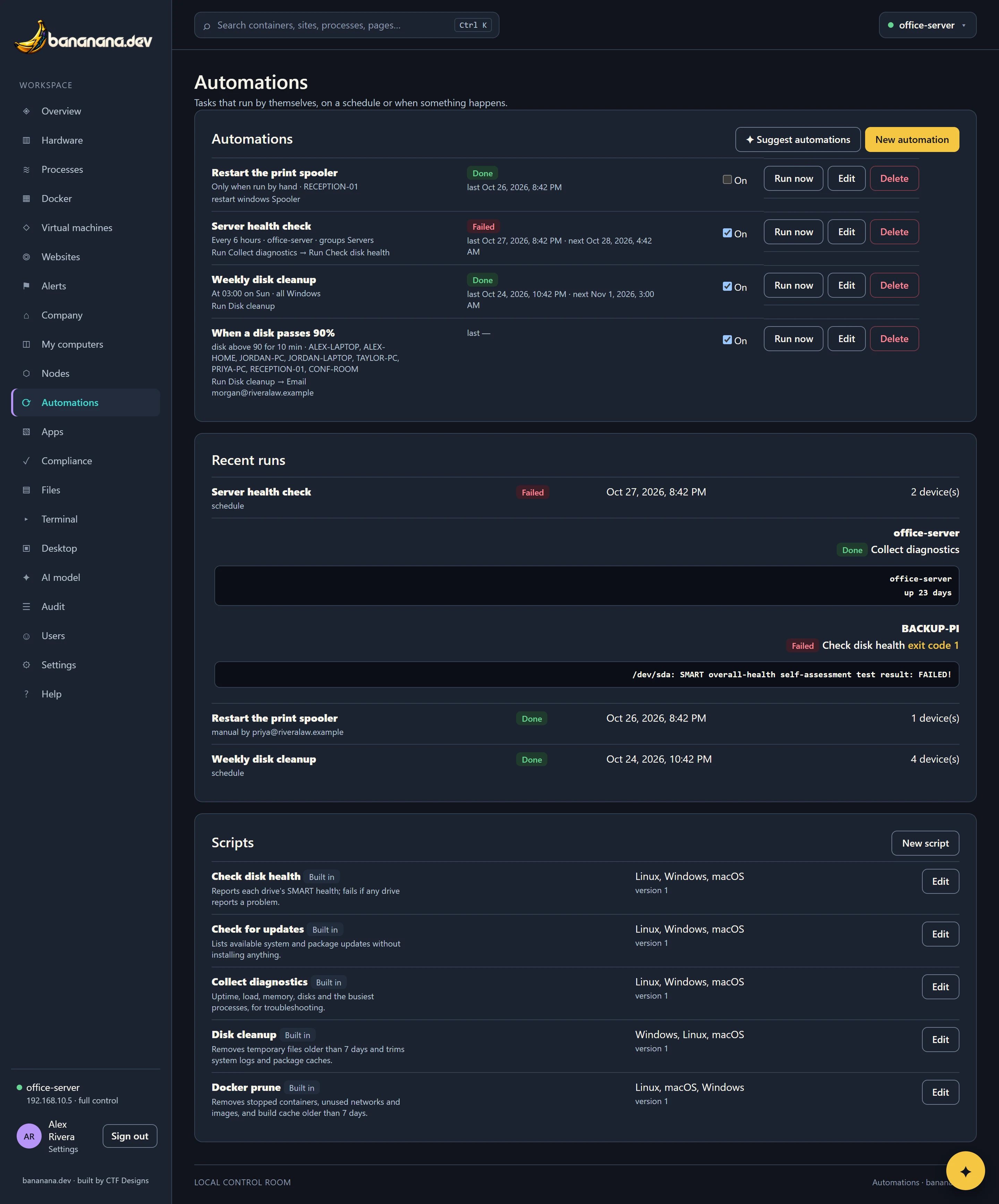
Recent runs lists every run with when it started, what started it, and the result. Click one to see each device's steps with their output and errors.
Let the AI suggest some
Press ✦ Suggest automations. The assistant looks at your devices and drafts a few sensible automations (such as weekly cleanup on Windows PCs, or disk-health checks on servers). Each draft opens in the editor for you to check, change and save; nothing runs until you turn it on. Needs the AI assistant set up: The AI assistant.