Help › Start here
Finding your way around
The menu, search, the device switcher, the AI button and how the dashboard looks on a phone.
The menu
The menu on the left is the same on every page. The top group shows one machine (the brain, or whichever device you picked in the switcher). The rest is your whole company. Items you don't have permission for are hidden, so a helpdesk person sees a shorter menu than an Owner.
| Item | What it's for | Help page |
|---|---|---|
| Overview, Hardware, Processes, Services, Docker, Virtual machines, Websites, Alerts | The machine picked in the switcher: live readings, what's running, its websites and alerts. | The server's own pages |
| Company | Every device at a glance, and what needs attention. | Company overview |
| My computers | The computers you own, to open from anywhere. | My computers and working from anywhere |
| Nodes | Every device, onboarding, approvals, and each device's page. | Devices and the device page |
| Automations | Tasks that run on a schedule or when something happens. | Automations |
| Apps | The app catalog, rollouts and rings. | The app catalog, Rollouts and rings |
| Compliance | Whether every device meets the company's requirements. | Compliance |
| Files, Terminal, Desktop | Files, a command line and the screen of the picked machine. | Screen, terminal and files |
| AI model | Which AI the assistant uses, and spending. | The AI assistant |
| Audit | Everything anyone did, who, when and from where. | The audit log |
| Users | People, roles and invitations. | Users, roles and permissions |
| Settings | Your password, sign-in methods and signed-in devices. | Signing in and your account |
The last item, ? Help, opens the help page for whatever you're looking at, in a new tab.
At the bottom of the menu: the brain's name and address with a green dot when the dashboard is connected, and your name, which opens Settings, next to Sign out.
Search everything
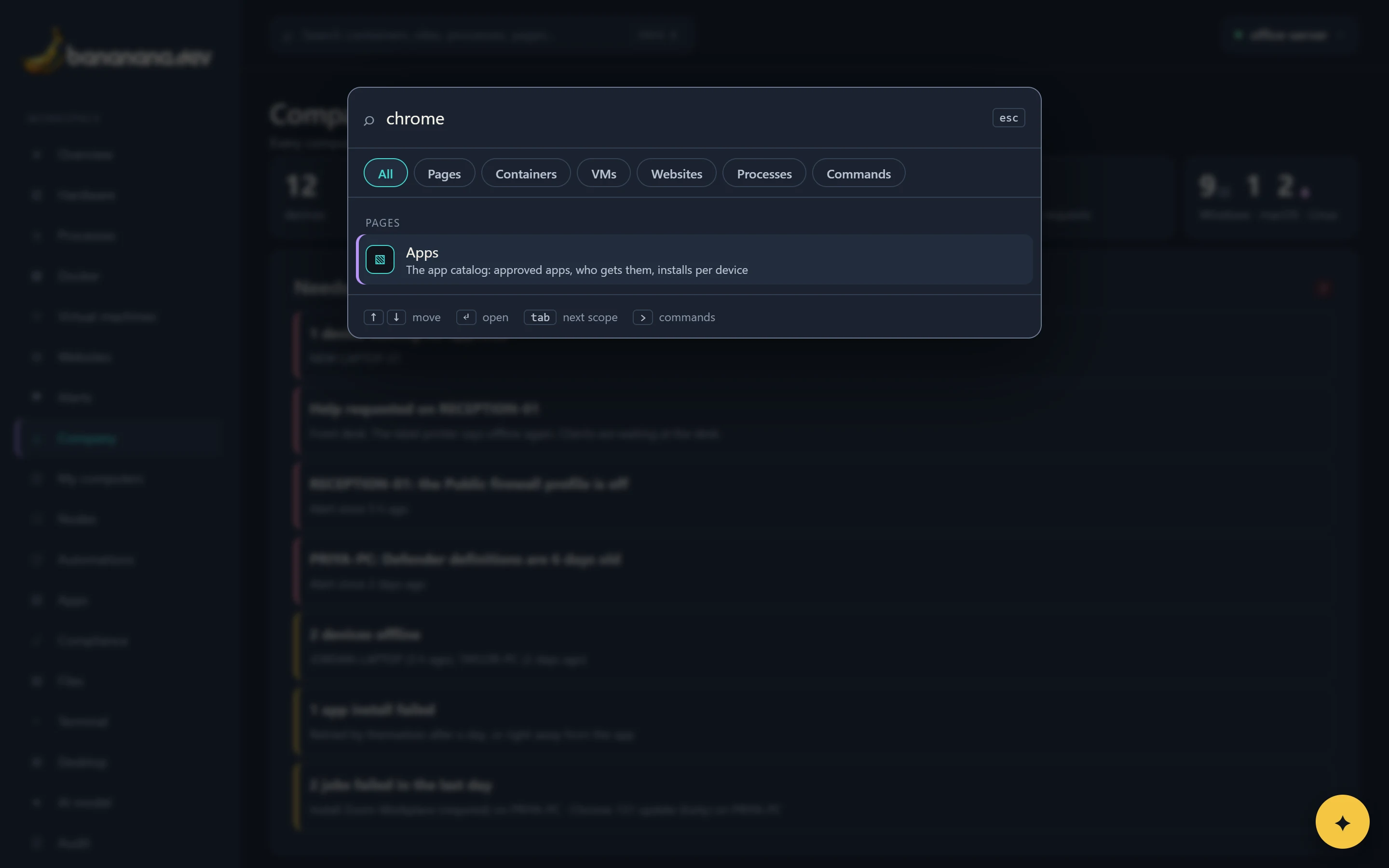
Press Ctrl+K (⌘+K on a Mac), or click the search box at the top. Type a few letters of anything: a page, a device, a container, a website, a process, or a command like "open a terminal". Use the arrow keys and Enter, or click. The chips under the box narrow the search to one kind of thing.
The device switcher
The button at the top right says which machine the top group of pages is showing. Click it to pick another. The list shows every device you may see, with its system and whether it's online. Your choice is remembered in this browser until you change it.
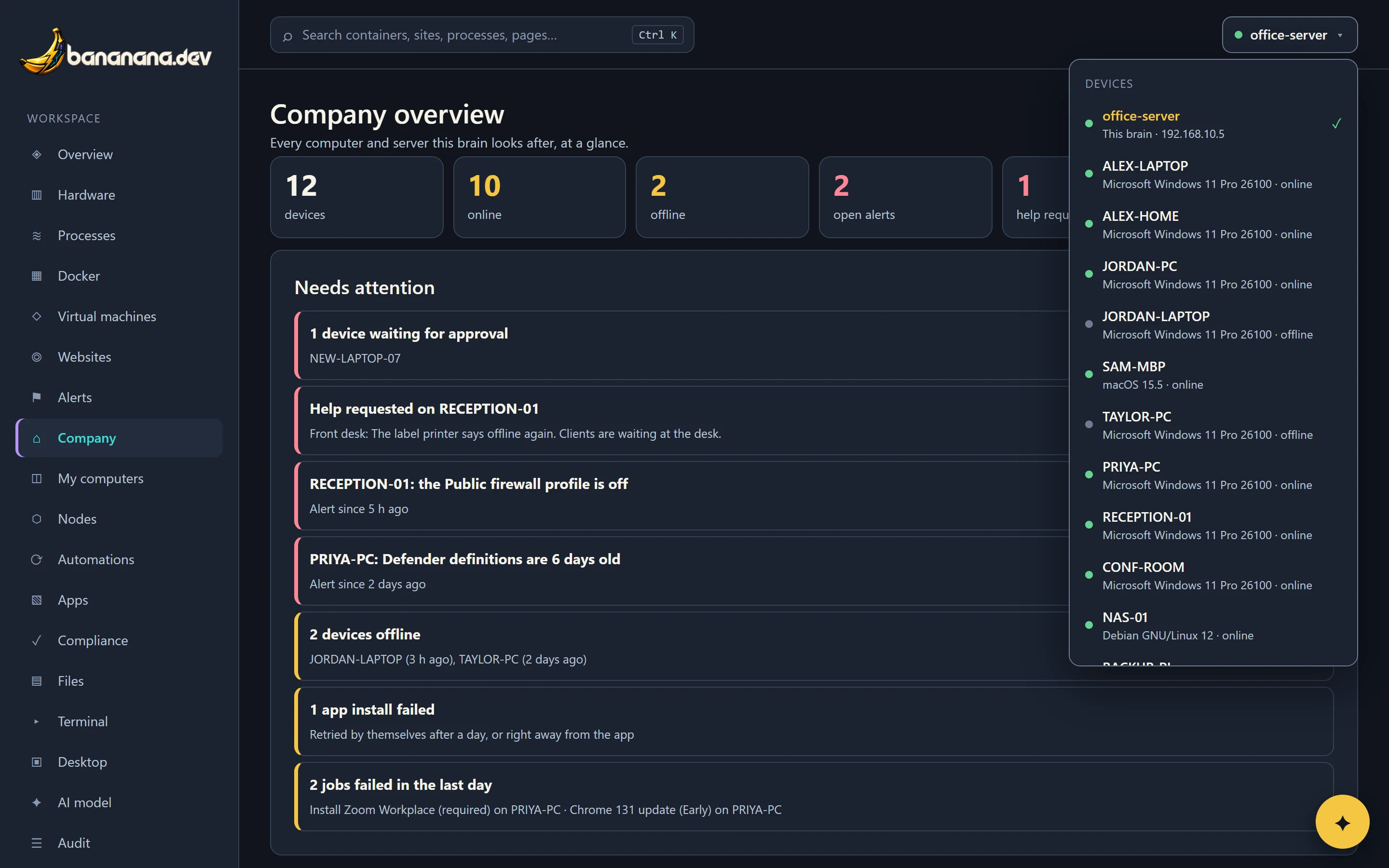
With a device picked, pages that only make sense for the brain (Virtual machines, Websites, Alerts) are hidden, and pages for features that device didn't allow are hidden too. Company-wide pages (Company, Nodes, Apps and the rest) don't change.
The AI assistant
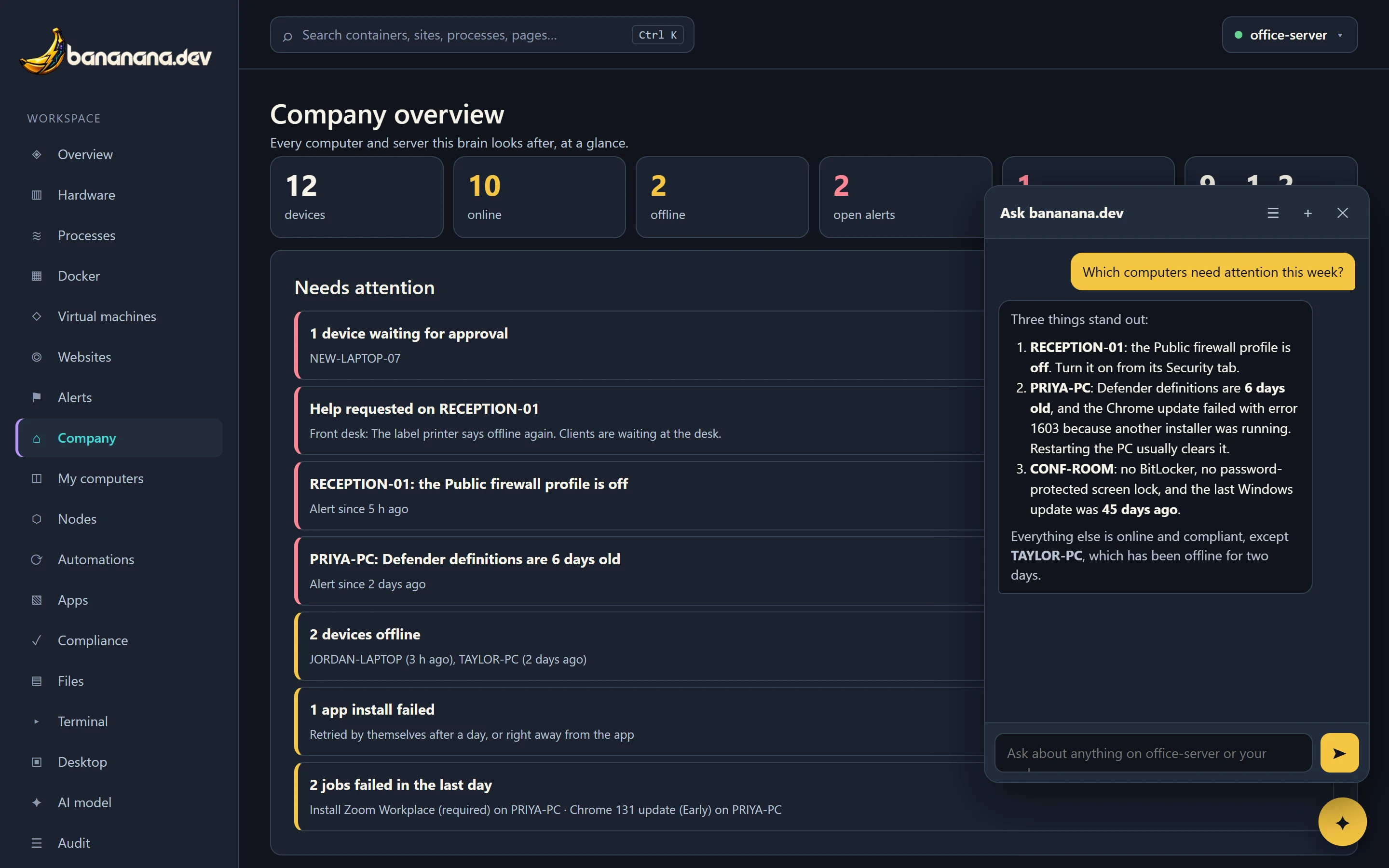
The yellow ✦ button at the bottom right opens a chat. Ask in plain words: "which PCs are missing Chrome?", "why is the server slow?", "what did Defender find this week?". It looks things up with read-only tools, only on devices you may see, and says what it found. It can't change anything, and it never sees passwords, keys or other secrets. Full details: The AI assistant.
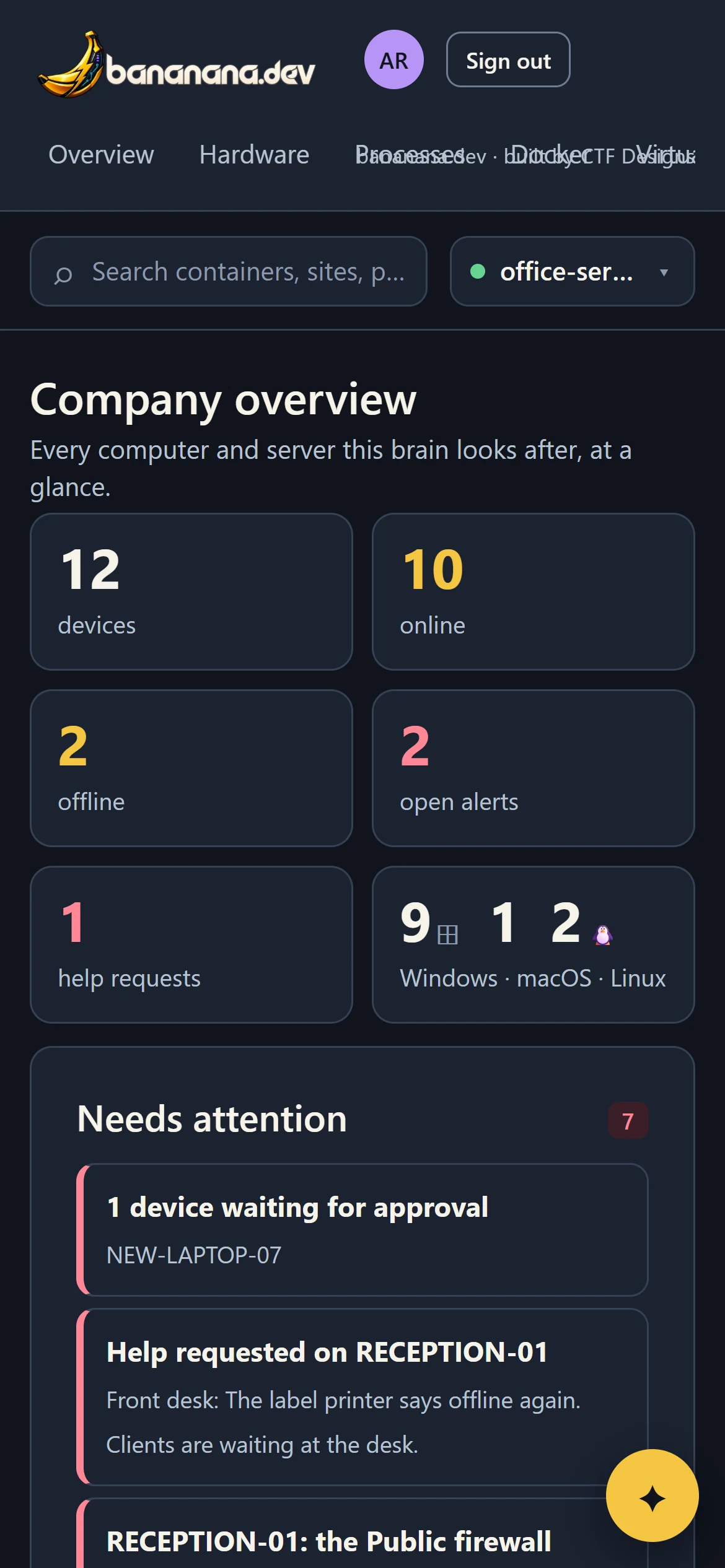
On a phone
The dashboard works in any phone browser. The menu becomes a row of links you can swipe along, and tables become cards. The bananana.dev apps for iPhone and Android add Face ID or fingerprint unlock and better typing in the terminal: The iPhone and Android apps.