
Help › Everyday use
My computers and working from anywhere
Open your office PC from home or a laptop exactly as you left it: your documents, tabs and windows. Copy and paste between them, lock it when you leave, wake it up, and install the apps you need.
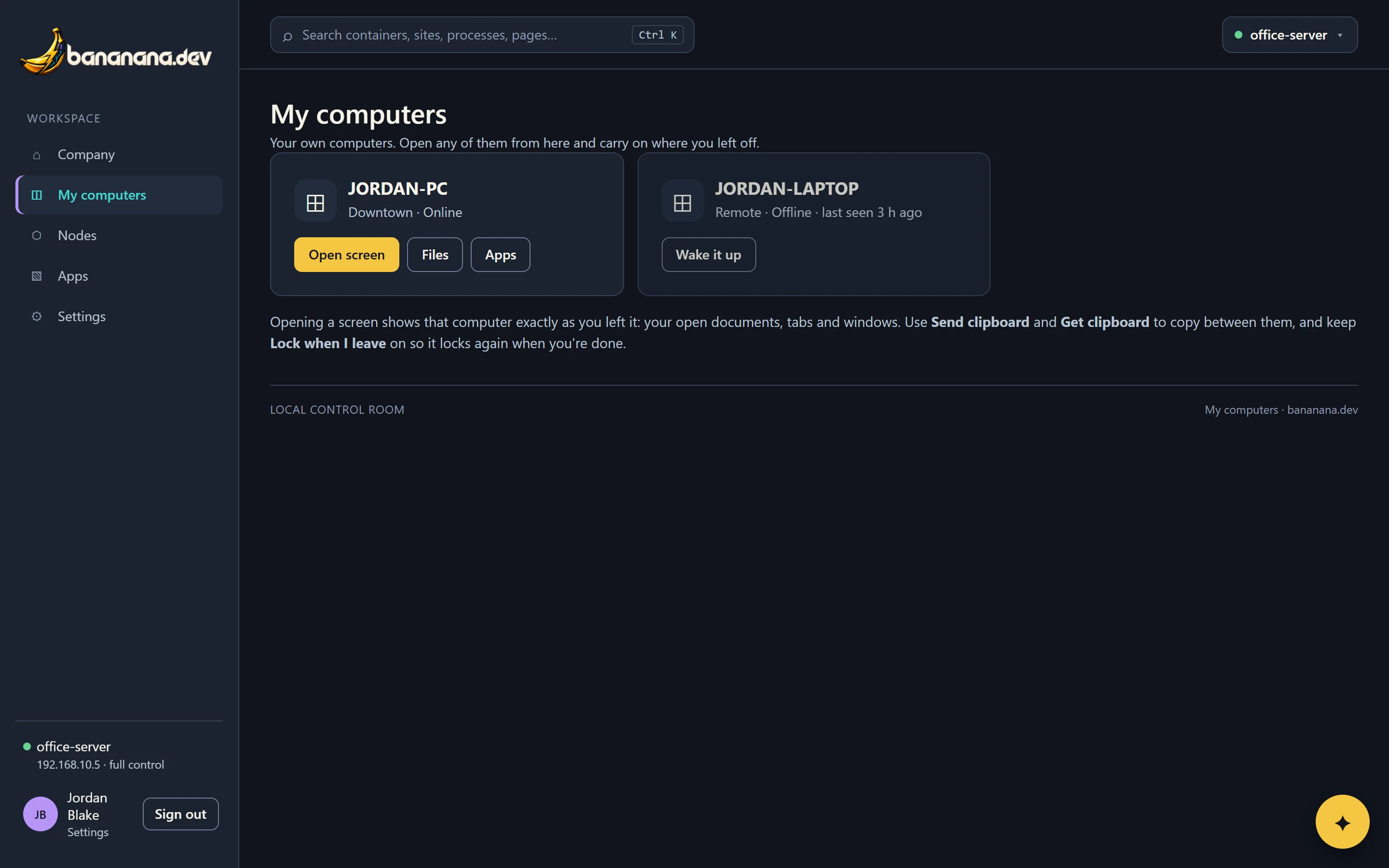
Lots of people work on more than one computer: a desktop at the office, a PC at home, a laptop on the road. My computers lists the ones that belong to you and lets you open any of them from wherever you are, showing exactly what you left on the screen. Your open Word documents, browser tabs and windows are all still there, because you're looking at that computer itself.
Which computers are "mine"
A computer is yours when its Owner is your email address. Your IT team sets that on the computer's Device tab, or it's set automatically when the computer was added with an onboarding code or a serial number from the expected-devices list. If My computers is empty, ask them to set you as the owner.
Open your office PC from home
- Sign in to the dashboard from any computer or phone and open My computers. On a computer that has bananana.dev, you can also right-click the bananana.dev icon by the clock and choose My computers….
- Press Open screen on the computer you want.
- If you haven't confirmed it's you in the last 15 minutes, bananana.dev asks for your password and a code once more. Screen control is powerful, so this protects you if someone else gets at your signed-in browser.
- The screen appears. Click and type as if you were there. The keyboard, mouse, scrolling and right-click all work.
While you're connected, the bananana.dev icon on that computer changes and shows who is viewing it, so anyone sitting there can always tell.
Copy and paste between computers
Use Send clipboard to put what you copied here onto the remote computer's clipboard, then paste there as usual. Use Get clipboard to bring what you copied there back here. Text only for now.
Lock when I leave
Keep Lock when I leave ticked and the remote computer locks itself as soon as you close the screen, so nobody walking past the office PC sees your work. It's on by default.
Wake a computer that's asleep
An offline computer shows Wake it up. bananana.dev sends a Wake-on-LAN signal through the brain, or through another bananana.dev computer on the same network, and the computer usually comes online within a minute. For this to work, Wake-on-LAN must be turned on in the computer's BIOS or UEFI settings and network adapter (most office desktops have it; many laptops only wake when plugged in).
Install apps yourself
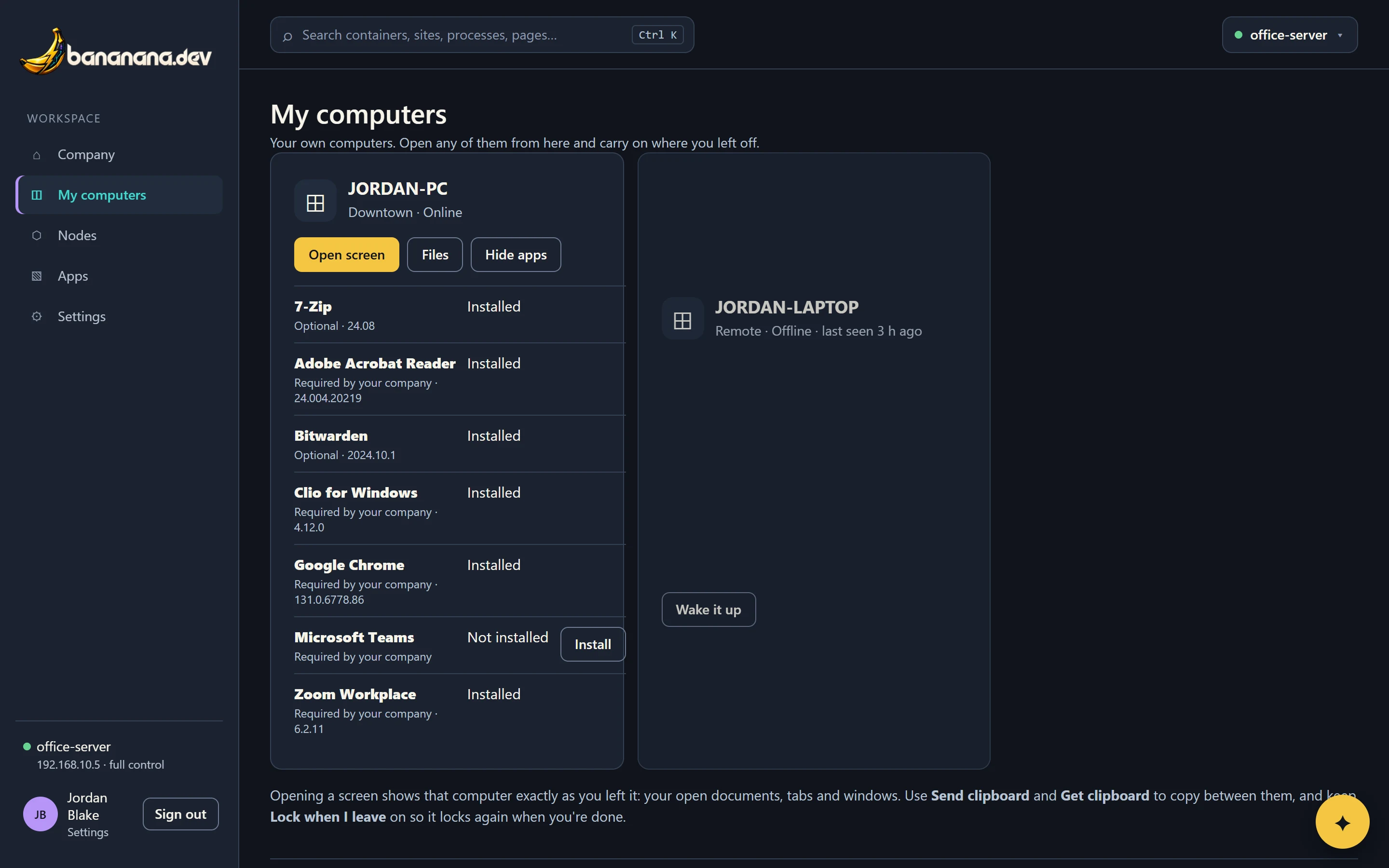
Press Apps on a computer to see the apps your company has set up for it: required ones it should have, and optional ones you can install yourself. Press Install next to an optional app; it installs within a few minutes, and the list updates by itself.
Get help
Right-click the bananana.dev icon by the clock on your computer and choose Request help…. Write what's wrong; it appears straight away on your IT team's dashboard with your computer's name, and they can see your screen to help if needed (you'll see the icon change while they do). More about the icon: The agent and the tray icon.
On your phone
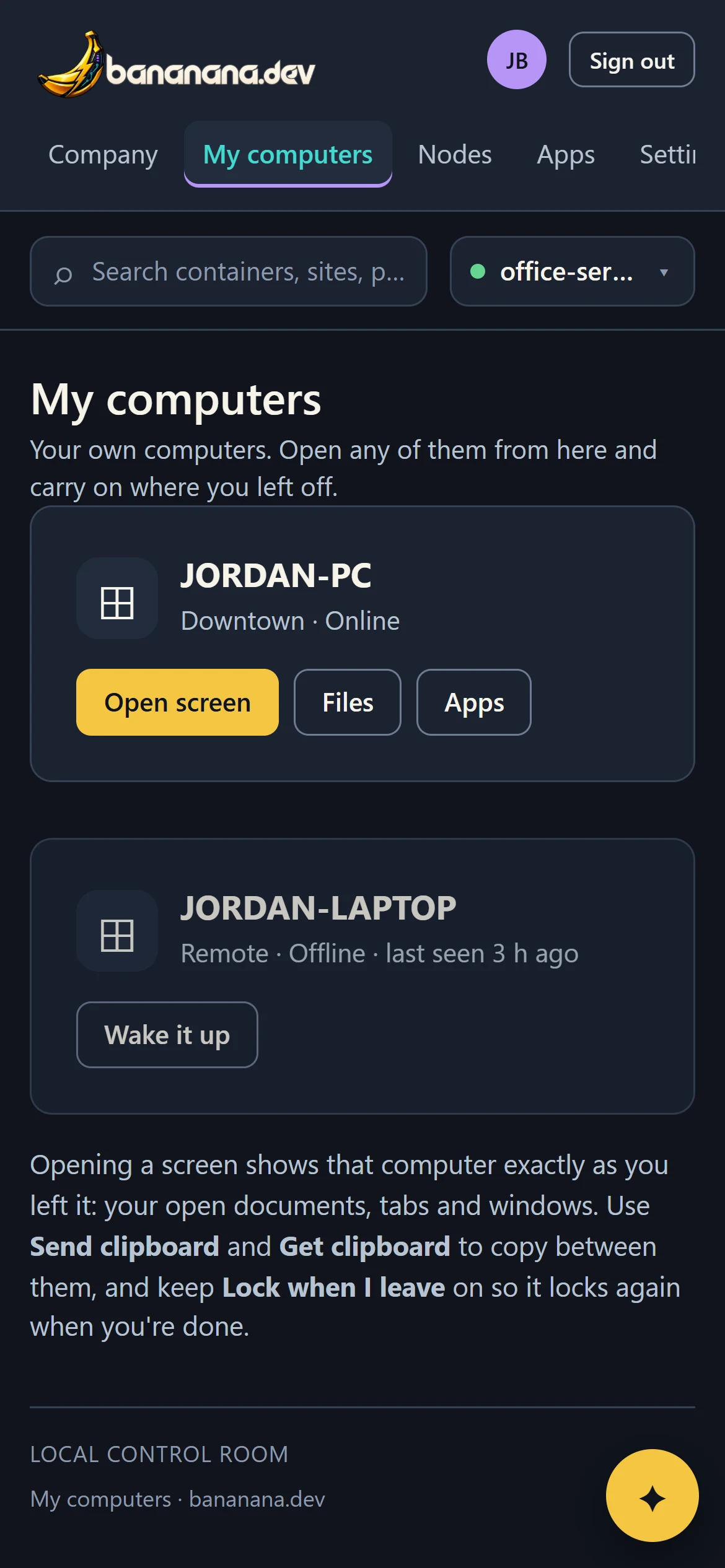
My computers works on a phone too, in the browser or in the bananana.dev app. Opening a screen on a phone is handy for a quick look or to wake a computer before you get home.
Coming soon: bring your workspace with you
Today you open the office PC itself. Next, bananana.dev will move your work to the computer you're sitting at: when you leave one computer, it remembers your open documents, browser tabs and window layout, and the next of your computers offers to restore them, opening the same files from OneDrive or SharePoint.